Install Guild Wars on Mac
How to install GWonMac on Apple Silicon and what to expect on first launch.
GWonMac installs like any other Mac app. You need an Apple Silicon Mac (M1 or newer) with macOS 12 Monterey or later, plus your Guild Wars account. The game itself is downloaded from ArenaNet on first launch.
1. Download
Download the latest .dmg and open the disk image. You can also get every release, with checksums and build attestations, from the releases page on GitHub.
2. Move to Applications
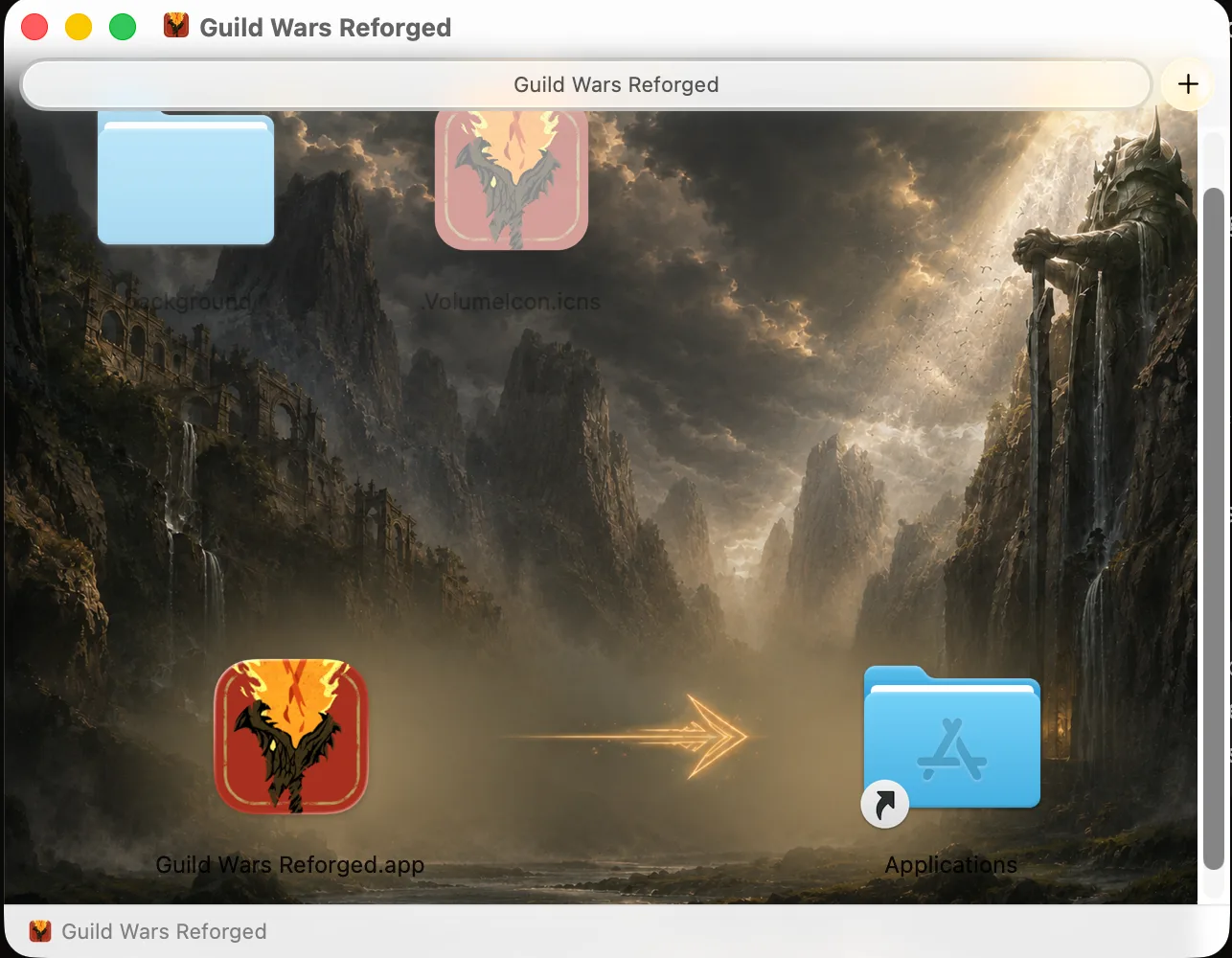
Drag Guild Wars into the Applications folder shown in the disk image.
3. Open and play
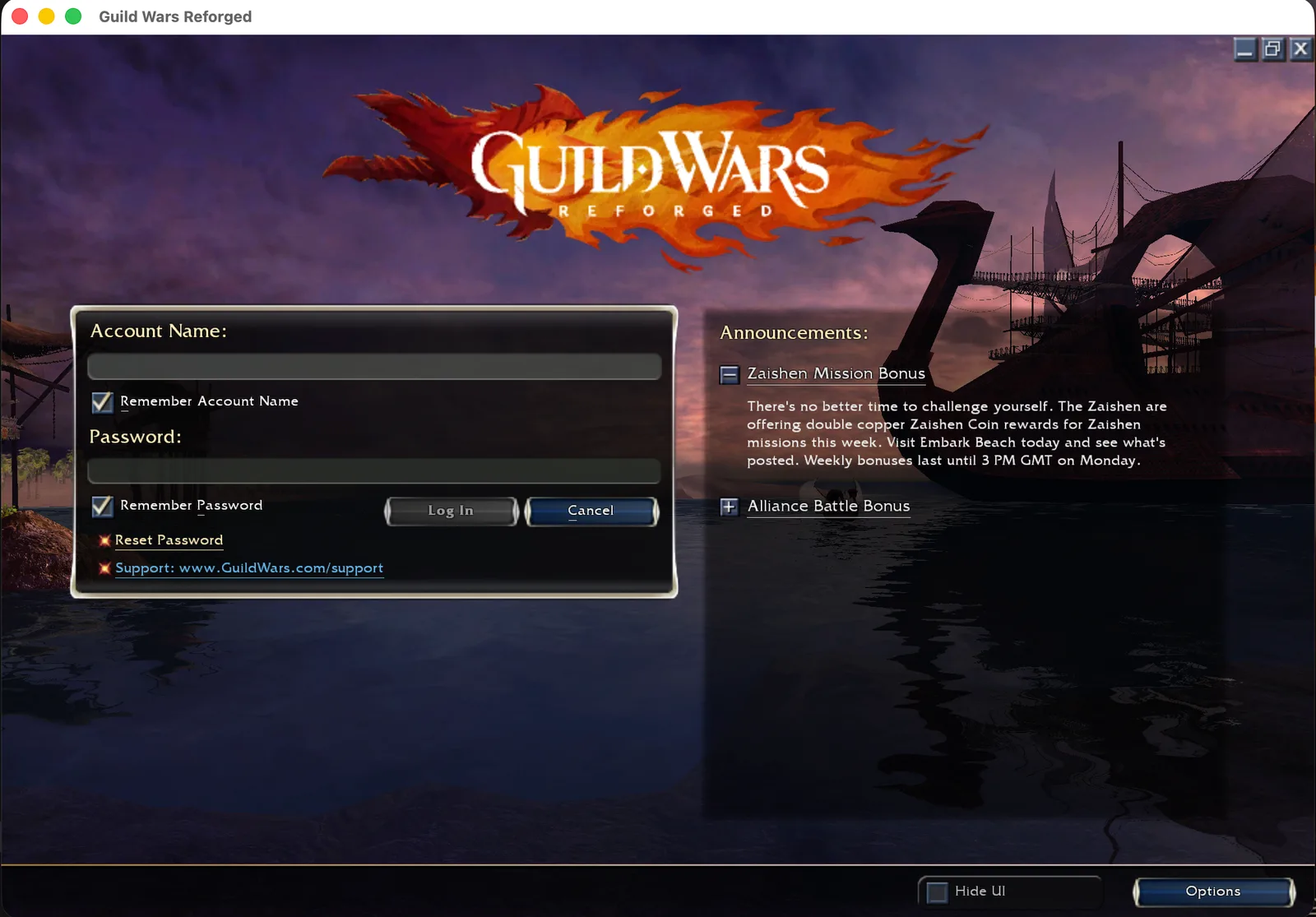
Open Guild Wars from Applications. The launcher checks the official client and starts the game as soon as the required data is ready. The remaining game data downloads automatically in the background while you play.
Sign in with your Guild Wars account. Steam login works too. If you have been playing on mobile with Sign in with Apple or Google, link that account first: Accounts & mobile linking.
Updating
Game data stays current on its own. When a new app version is out, the launcher shows a notice and installs it in one click. You can also check manually from the launcher.
If something goes wrong
Most first-launch questions are covered in Troubleshooting & known issues. For everything else, ask on Discord, report a bug, or request a feature.